Up next in 10


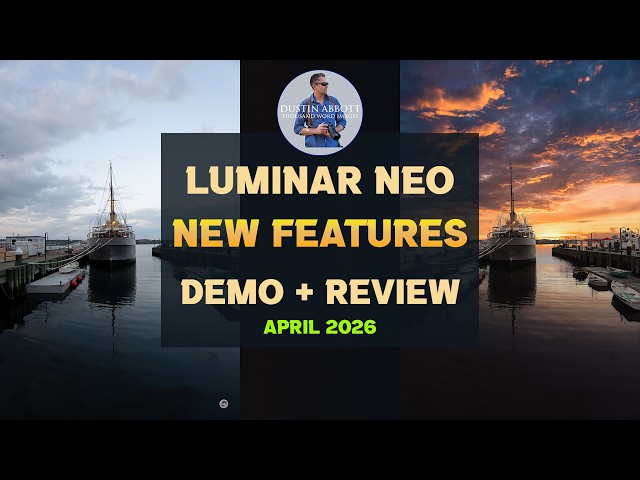
Photographer Dustin Abbott explores the most recent update to Luminar NEO and tests features for portraits, restoring old photos, AI-assisted editing and more. #skylum, #luminarmobile, #luminarneo, #aperty
Buy Luminar | New users: https://skylum.evyy.net/c/1302817/3816980/3255
Upgrade Luminar for Existing Users: https://skylum.evyy.net/c/1302817/3254139/3255
Use code DUSTIN10 for 10% off.
=============================
Table of Contents:
=============================
0:00 - Intro
1:08 - Cross Platform
1:42 - Restoration
3:17 - Light Depth
6:05 - New Portrait Tools
12:24 - AI Directed Edits
16:57 - AI Auto Edits
19:48 - Conclusion and Pricing
---------------------------------------------------------
Oben Tabletop Tripod shown in video: https://bhpho.to/3vL8YWy
Show More Show Less View Video Transcript
0:00
[music]
0:10
>> Hi, I'm Dustin Abbott. Earlier this
0:12
year, I took a look at Luminar Neo's
0:14
[music] mobile application and gave you
0:17
a little bit of look at what I've been
0:19
playing around with on that. It's been
0:21
some years since I've actually done a
0:22
review of their desktop software and
0:24
because they are increasingly
0:26
cross-platform, I thought I would take a
0:28
look at a couple of their most recent
0:30
updates and some of the new tools that
0:32
came with them. They had an ecosystem
0:34
update for fall 2025 and then just just
0:37
in this last week, they announced a new
0:39
one which is their spring 2026. All of
0:42
which brings some new tools to play with
0:44
and of course they're doubling down on
0:47
AI technology as a part of the editing
0:49
process. I'm going to take a look at
0:52
some of those new features to see how
0:53
well they work, if I like the way that
0:55
they work and perhaps maybe demonstrate
0:57
for you whether or not this is something
0:59
that would actually work for you in your
1:01
own editing workflow. And so we're going
1:03
to dive in and take a look at you four
1:05
or five of these new features and see
1:07
how they work. Let's take a look. One of
1:09
the cool things about Luminar Neo now at
1:11
this point is that it is completely
1:13
cross-platform. And so my last video on
1:16
Luminar was taking a look at Luminar
1:18
mobile and I here I have access to all
1:21
of those photos that I edited on my
1:23
phone that we talked about as a part of
1:26
that review. But what we're here to look
1:28
at is a lot of the unique tools that
1:31
came as a part of the two most recent
1:33
updates including both the fall and
1:36
spring updates, fall 2025 and spring
1:39
2026. We're going to look about three or
1:41
four of those different options. Another
1:43
new tool from Luminar Neo's fall
1:46
ecosystem update from 2025 was their a
1:50
new restoration option for old photos.
1:52
So in this case, this is a
1:54
going to be a fully automated process.
1:56
Now you can go back and do tweaks after
1:58
the fact, but in this case what I've the
2:00
options I've got is from my on the
2:02
catalog page, I have now got something
2:04
called restoration down here and all
2:05
that I'm doing is actually will go away
2:08
from that and we'll drag it in here. So
2:11
I've got options of going to color, to
2:13
remove scratches or a full restoration.
2:15
And so I'm going to click that and here
2:18
I've already let it run its process
2:20
previously and so we'll take a look at
2:22
what came out of the mixer. So here's
2:24
what went in, you can see all the
2:26
typical flaws. This is from March of
2:28
1963. It's my mother-in-law and her twin
2:31
sister and so an old photo, but you can
2:34
see that it's eliminated a lot of the,
2:37
you know, kind of the junk around the
2:38
edges and kind of brought it to life
2:40
with a little bit more detail, you can
2:42
see, but without going crazy, restore a
2:44
little bit of detail, but then also
2:46
colorized it and frankly it still has
2:49
actually is a pretty good result. It has
2:51
some vintage charm to it. It looks
2:53
realistic. It doesn't look overblown.
2:55
And so I think that this is kind of a
2:57
cool effect.
2:59
Now this last time as we've just run it
3:01
through the mixer, it produces a
3:03
produced a little bit of a different
3:04
result and and so I guess you can kind
3:06
of determine what you like better, a
3:08
little bit more color, a little or a
3:11
little bit more of a sepia type look,
3:13
but either way it has definitely made an
3:15
improvement to what we threw into the
3:16
blender. So when you open up Luminar
3:18
Neo, you will come to your typical
3:21
gallery or cat catalog type setting and
3:23
you can choose what image you're going
3:25
to work with. Then usually the next step
3:27
is if you want to go into presets, you
3:30
can do so or you can jump right into the
3:32
main editing page. One thing they will
3:34
do which is interesting is that they
3:35
will suggest a few different groups of
3:39
presets for you to look at. With all of
3:42
these as you hover over them, it will
3:44
give you a quick look at how it's going
3:47
to look. I should like that winter
3:48
refuge, but with all of these, you can
3:51
scale the percentage and the intensity
3:54
of the preset itself. And so I'm going
3:56
to scale it back here more into the 50%
4:00
or so zone uh to get it to a place where
4:03
I like the overall cool effect of it. I
4:05
think that helps these colors to pop to
4:07
it, but it's not too aggressive. Now if
4:09
we jump into the edit tab here, I'm
4:12
going to take a look at one of their new
4:14
creative features which is this light
4:17
depth. And so you can see that it's
4:19
already mapped out the way that the
4:21
light is falling on the image. And so
4:23
I'm going to just work up the slider and
4:25
so that you can see how that it changes
4:28
the the lighting effect here. Now the
4:30
reason why I like this for this
4:32
particular image is that if we go back
4:33
to the original, you can see that a lot
4:35
of the kind of luminosity here is on
4:38
this foreground and there's obviously
4:39
it's it's a city, so there's some junk,
4:41
some trash on the ground. Now if I tweak
4:44
this aways, what I'm doing is I'm
4:46
changing the light intensity towards
4:48
what really is the feature here which is
4:51
this, you know, wall with a mural and of
4:53
course me leaning against it, a little
4:55
bit left less emphasis here. And so in
4:57
this case, I actually think that it
4:58
works quite well. Now also you have the
5:01
option of messing with this slider as
5:04
far as the softness that is just going
5:06
to modify that behavior. I'm going to do
5:09
very little of that and then you can
5:11
play with, you know, your color
5:14
temperature that's primarily targeting
5:16
that zone that you're working on. And so
5:18
if we take a look at here, it's
5:20
basically masked off that. And so as I
5:22
tweak this, that is changing very
5:24
little. And so instead, I'm able to just
5:27
kind of focus on the area that I'm
5:29
primarily wanting to impact. And so what
5:31
you're not seeing here is basically the
5:33
use of mask and you can see how it's
5:36
working here a little bit and you even
5:37
have some ability to tweak that mask and
5:40
so that you're either growing or
5:42
shrinking that. But the way that it's
5:44
affecting the way that the light hits
5:46
the subject, it's an interesting tool
5:47
because we can see here if I look back
5:50
towards the original before the edits
5:52
and then come back to it, we can see
5:54
that it's just added some, you know,
5:56
kind of sparkle to the image generally,
5:58
allows myself, the subject to pop up,
6:00
the wall itself to pop up more and
6:02
taking a little bit of emphasis on this
6:04
messy foreground. Okay, we're going to
6:06
take a look at some of the new portrait
6:08
features here in the most recent build
6:11
of Luminar
6:13
Neo. I'm going right past the presets.
6:15
I'm not really going to mess with any of
6:17
that for this particular image, but I
6:19
will just very quickly jump into this
6:23
area here. I'm going to add just a hint
6:27
of extra exposure there.
6:30
I'm going to
6:31
warm the image a bit here, maybe not
6:34
quite that much and um
6:39
maybe shift that color just a little bit
6:42
that direction.
6:44
Let's go somewhere in this zone just to
6:46
give it kind of that good warm summer
6:48
glow. So I'll give you a quick look at
6:50
what we have done so far, just kind of
6:52
warming up the image and making it look
6:54
a little more summery. But where I
6:56
really want to take us to is under their
6:59
portrait setting here. And so they have
7:02
some features here that we'll quickly
7:03
check out. One of those is studio light.
7:06
Now again, your kind of idea of what,
7:08
you know, constitutes as being gimmicky.
7:10
So let's say if we're going to do this
7:12
and I'm going to put it at high
7:13
intensity just so you can see what it's
7:15
doing. So essentially as we move this
7:18
around, it's like adding a light source.
7:21
And so you can see the masking, this is
7:23
they're big on the masking. It's
7:25
analyzing the places where if a light
7:27
was at this direction, the places where
7:29
the light would naturally fall. Now
7:31
obviously we would never use it at this
7:33
degree of intensity, but if you're
7:34
wanting to add a little bit of hair
7:37
light for example or a little bit of a
7:39
back light or in this case add a little
7:42
bit of a fill light which frankly is
7:44
what I'm most inclined to do here. And
7:47
so obviously I wouldn't use it anywhere
7:49
near the intensity that was at. But if
7:53
we bring this down maybe into this zone
7:57
and now if we were to look at it, you
7:58
can see that adding that bit of fill
8:01
light has just allowed the face
8:03
highlight and a little bit of the body
8:04
to pop a little bit more and so it just
8:07
definitely is helping us to get a little
8:10
bit closer there. So I mean obviously
8:11
you can play around that. You can if we
8:13
go back here for a moment, you can add a
8:14
number of different light sources. I'll
8:16
leave that up to you to decide how much
8:18
you want to play with that. One of the
8:20
other main things that they are doing
8:23
here though is automating things like
8:25
working on the face and so as far as all
8:30
of our skin textures and details. And so
8:32
here we're at a pretty high level of
8:33
magnification, larger than what you
8:35
would look at it typically, but let's
8:38
just take a look at face smoothing.
8:39
Obviously if we go to the extreme of
8:42
maxing out that slider, you can see that
8:45
it has done that. However, it's smoothed
8:47
things out, but without, I mean like
8:50
totally decimating the image. Okay, and
8:53
so here you can see it's smoothed it,
8:55
but even at 100% it's it's not bad. It's
8:59
done it in a way that is natural. And so
9:01
I think that that's really kind of the
9:04
the benefit here. One of the one of
9:06
these tools that we have here is
9:07
improvement to their shine removal.
9:09
Again, I'm going to max out that slider
9:11
because one of the things we did by, you
9:13
know, putting that is we created that
9:15
extra fill light is we added a little
9:17
bit of a highlight hotspot there. So if
9:19
I slide that over aways to where I have
9:22
eliminated that, we can see that I've
9:24
gotten that nice bright light on the
9:27
face, but with adding like a glow, but
9:30
without a hotspot there. And so I think
9:32
that that is, you know, it's just nice.
9:34
Now as far as blemish removal, I mean
9:36
young skin here, so not a lot of
9:37
blemishes. Let's see what happens if we
9:39
just take that all the way up and give
9:42
it a moment to do its work. Again, not a
9:44
whole lot to deal with, but we can see
9:46
right through here that it's done some
9:48
subtle and the key being subtle. I like
9:51
what we're doing here because it's not
9:53
intense, it's not overdone. It's not
9:55
even trying to completely eliminate,
9:57
it's minimizing that and that's even at
9:59
100% magnification and so or 100% kind
10:03
of opacity to it. And so anyway, I think
10:05
that what Luminar is doing here is
10:07
adding some subtlety to these tools
10:10
and so that you're able to get a just a
10:12
better looking end result quite easily.
10:14
And so definitely some things there. I
10:16
mean, you can go beyond that into body
10:18
morphing and again a young attractive
10:22
subject don't really need that. They've
10:24
got some different tools to use here if
10:26
you're using an high key and then even
10:28
when it comes to face, you can change
10:30
the face light. I mean and obviously
10:32
that's a more localized way of what
10:34
we've what we've already kind of done
10:36
with the studio light and then you can
10:38
slim the face down.
10:41
Um
10:42
Again, not necessary here.
10:44
But what I'm going to do is show you
10:46
that at a 100% so we can see how subtle
10:49
it is. To me it's, you know, I don't
10:51
like that. It the face looks kind of
10:53
squashed. But if we were to take that
10:55
down to a much lower
10:57
level, again now we've got a more
11:00
natural result. Again, I don't feel like
11:02
it's necessary here but you know, it
11:04
gives you some options when it comes to
11:06
things like that. So I think that I
11:09
think most people would agree if we look
11:10
here at what we've quickly accomplished
11:12
that we've got a image that looks I
11:15
think nicer overall in general. One
11:18
other tool that I haven't examined here
11:20
is the bouquet quality. Now I happen to
11:22
shoot this with the Sigma 200 mm F2 and
11:25
so obviously we've got a highly diffused
11:28
background already. But what we can see
11:30
here is if we pull up the the bouquet,
11:32
it's showing a really you know,
11:35
sophisticated mask here. And so if I max
11:38
out that slider, again it's going to an
11:40
extreme the background to me looks a
11:43
little bit artificial at this point and
11:45
you can see that the mask in the hair is
11:47
a little imperfect. But again, if we
11:50
bring that opacity down to a level to
11:53
where it's not messing with the hair.
11:56
Again, what we have got and I'm going to
11:59
exit out of that and take a look here.
12:02
What we've got is just a little bit
12:05
softer if you look at this zone for
12:07
example, it's just a little bit softer
12:09
grabbing a few less edges and so the end
12:11
result is just a little bit more soft
12:15
glowing kind of that you know, magical
12:18
looking summer portrait that I was going
12:20
for. So tools that definitely do work.
12:23
One of the new tools in the fall
12:25
ecosystem update from 2025 was the
12:28
addition of this AI assistant. If you
12:30
click on it here, it gives you a list of
12:33
options. You can obviously ask it about
12:35
other things but in this case, it's
12:37
giving you some basic you know, options
12:40
and so you can go to the enhance this
12:42
photo which I'll demonstrate something
12:43
like that in just a moment. In this
12:45
case, I'm going to select the fourth
12:47
option how to make this image look more
12:49
moody and cinematic. And so what is
12:53
going to
12:54
it's going to do is it's going to think
12:55
about things for a moment and rather
12:57
than do all of the edits for you, you
13:00
know, without a lot of transparency,
13:01
instead it's going to give you a list of
13:04
tools to utilize. So
13:06
in four steps, it says start with mood
13:08
and so there it's going to take me to
13:09
mood and recommends that I choose a lot.
13:13
And so there obviously is a lot of
13:15
different lot options and the nice thing
13:17
about these is that you can get a real
13:20
time feedback on all of them as you go
13:22
through it. I kind of like the toning
13:25
that comes from the Manhattan and you
13:28
can obviously select the amount of that
13:31
that is there. You can select contrast
13:33
as a part of the lot. I don't recommend
13:35
doing a lot of this here yet because
13:37
you'll have more options in how to do
13:39
it. So basically, I'm looking at the
13:41
overall you know, toning and determining
13:43
that I like the color palette here and
13:46
what the potential is there to edit
13:47
with. Okay, the next step that it
13:49
recommends is going to color to give us
13:52
a little bit more saturation to enhance
13:54
the moodiness. And so here I'm going to
13:56
play a bit. Obviously, heavy levels of
13:59
saturation way too much. Vibrant, you
14:02
can see again heavy levels of intensity
14:05
a little too much. But here what we've
14:07
done is we've increased that kind of
14:08
moody blue in the water which I like and
14:12
you know, without doing any kind of
14:13
serious damage to the colors to where
14:15
they're they're popping but they're not
14:17
oversaturated. Moving on here, going
14:19
into develop, we're going to go there to
14:22
do things like adjusting contrast,
14:24
darkening the background to further
14:26
emphasize the ship and create a more
14:28
dramatic effect. And so if we go here,
14:31
we can look at some of these options and
14:32
so in highlights, I like pulling down
14:35
the highlights a bit to kind of enhance
14:37
that sky a little bit more. Maybe open
14:40
up those shadows a hair but then let's
14:42
take a look at this smart contrast and
14:44
play with that a little bit. We can see
14:46
decreasing that allows for a more flat
14:49
image. Increasing it is going to give us
14:51
a little bit more kind of pop there
14:54
generally in that. Now it has me adding
14:58
going to atmosphere to subtly add fog or
15:00
mist. I'm not sure that I necessarily
15:03
love this. I think that it creates too
15:05
much destruction to the image itself. So
15:08
I'm going to skip that step but that's
15:10
the nice thing is that you don't have to
15:11
just go with it. You can see their
15:13
recommendation. Now the final step
15:15
they're recommending is going into the
15:16
sky AI. And so here this is you'll have
15:20
to determine whether or not you want to
15:21
go to this level. I could just tweak and
15:23
enhance this particular sky. However,
15:25
you can see that if I click on their
15:28
recommended sky here, I'm going to take
15:30
that off for a moment. It does give us a
15:32
pretty dramatic image there that looks
15:35
pretty awesome. And so again, as always,
15:38
you can further refine that a little bit
15:41
if you want to tweak that as far as
15:44
where that sky position is. I kind of
15:46
actually like it there a little bit
15:47
more. It's vertical position, you can
15:49
play with that but in this case, we want
15:51
to get to where that's just over that
15:54
horizon over there. Then you can shift a
15:57
little bit right and left. However,
15:59
right in here is a nice kind of dramatic
16:02
result and I I kind of want a position
16:04
where the sun would be here and so that
16:06
I'm getting a realistic effect of where
16:07
the light would be falling there. Again,
16:09
you're going to have to determine
16:10
whether or not that is a bridge too far
16:12
for you but certainly if we take a look
16:14
at you know, where we started to what we
16:16
ended up with, it is obviously a very
16:18
dramatic result. I'm not sure I would go
16:20
all the way to this final result though
16:22
I do really like the image resulting.
16:24
Everything up to this point that I was
16:26
able to create is an actual you know,
16:28
natural just enhanced image. But at
16:30
least with this, you're able to actually
16:32
learn the steps and rather than it
16:34
making it all for you, you can actually
16:36
decide what you want to use. And the
16:38
nice thing about all of this as you
16:40
click on this edit tab, you can always
16:42
I'm going to minimize this for a moment.
16:44
You can go back through those steps that
16:46
you've taken and you can determine I
16:47
don't want to mess with that sky. There
16:49
you go. You can remove that.
16:51
And just move ahead as you would want
16:54
from there. So it gives you a lot of
16:56
control over the finished result. What
16:58
if you want a more animated approach to
16:59
this process? Well here if we look at
17:01
the AI assistant, we can look right here
17:03
at the top and look at the options for
17:05
enhancing this photo.
17:07
Here is what's going to happen if you
17:08
want AI to basically do the heavy
17:10
lifting but there is one advantage here
17:13
about this that I do like. So it comes
17:15
back with three different edits here and
17:18
so we can just click on them and see how
17:21
they turned out once they're applied. So
17:23
there is a you know, intense moody. Here
17:27
is a
17:29
you know, a little bit different
17:30
lighting effect to the image. Again,
17:31
we're kind of really
17:33
adding more saturation, more moodiness
17:35
to the general image and then a third
17:37
which is a little bit of a brighter,
17:39
less moody. But in each one of these
17:41
edits, what we're seeing is that a
17:43
comparison of them. And so edit number
17:45
one that was the first we saw, the
17:47
photo's overall brightness was reduced
17:49
with shadows deepened and highlights
17:50
toned down to enhance dramatic twilight
17:52
effect. Exposure's increased to capture
17:54
more detail in the darker area while
17:56
contrast was subtly boosted to improve
17:58
the tonal range and create a more
18:00
visually engaging image. If we skip down
18:02
to number three, further adjustments
18:04
were made to contrast and shadows with
18:05
midtones subtly enhanced to create a
18:07
richer depth. The glow effect was added
18:09
to accentuate the ambient light and a
18:11
touch of dramatic was introduced to
18:13
heighten the mood of the dusk scene
18:14
alongside a slight color adjustment to
18:17
reduce green tones. In the middle, we
18:19
had obviously a third one there.
18:21
What I like about this is that whether
18:24
or not you like the end result, you at
18:26
least have a little bit of transparency
18:28
about how it arrived at this result. And
18:30
so you can actually go through these
18:32
steps. And of course because they're
18:34
here, you could say well, that's you
18:37
know, not enough for me and so I'm going
18:39
to crank that up. Now hopefully that's
18:41
not the taste you actually have but
18:43
anyway, if it was, that's fine. But here
18:45
I could say, you know what? I don't it's
18:47
a little too much for me. I'm going to
18:49
tone that down a little bit. And so you
18:51
actually have the opportunity to then go
18:53
back seeing what they have done and you
18:56
can then further tweak those tools to
18:58
your own taste. And so I think for those
19:00
of you that are starting off and maybe
19:01
you don't know a lot about how to edit
19:04
or get results, you can at least
19:05
experiment with this and rather than
19:07
just clicking a preset and having no
19:09
control over what has happened other
19:11
than just the opacity of the preset, you
19:13
can actually go through here and maybe
19:15
learn a bit about your own taste and how
19:17
that you can achieve maybe a little bit
19:19
more dramatic and end result but while
19:21
still retaining your own unique editing
19:24
style. And I think that that adds a lot
19:26
of value. And so here is this is it
19:28
necessarily the end result I would end
19:30
up with. However, it is a you know, I
19:33
would say a more engaging image. I would
19:35
I tend to be edit a little bit more on
19:38
the subtle side so I probably would go
19:39
with a little bit more subtle end
19:41
result. But I do like what's been done
19:42
with the lighting and the overall effect
19:44
to the sky. It's interesting. I would
19:46
just play with it a bit more to get it
19:48
to my own personal taste. So my
19:50
conclusion is is that Luminar
19:53
sophistication is continuing to grow,
19:55
and they definitely they're kind of
19:57
early leanings towards AI have paid off
20:00
as they predicted the way that the
20:01
industry has gone. It's obviously still
20:04
somewhat of a controversial topic
20:05
amongst photographers as we kind of
20:07
wrestle with the idea of this
20:09
manipulation of images, how much of it
20:11
actually is photography and how much of
20:14
it is just, you know, digital art
20:16
creation. I'm not necessarily here to
20:18
have that debate. I tend to be a little
20:20
bit more of a purist with my own work,
20:22
but at the same time clearly they have
20:25
embraced tools early on that
20:28
more mainstream editing software like
20:30
products from Adobe have ended up
20:32
embracing in the end. I would say that
20:34
everything that I see here seems to work
20:36
fairly well, and I do like the fact that
20:38
you may maintain some control in most of
20:41
these cases over what's actually being
20:43
done, and I don't find the results quite
20:46
as cartoonish as what they once were.
20:49
And so, I think that as long as you're
20:50
using them within the bounds of taste,
20:53
certainly what Luminar has done with
20:54
their Neo software is very, very
20:57
interesting. And then so, take a look at
21:00
that. I'll have information in the
21:01
description down below as when it comes
21:03
to pricing models. They do have sales
21:05
associated right now, and so you can
21:07
take a look at that and see if you would
21:09
like to take the plunge into the Luminar
21:12
Neo world. As always, thanks for
21:14
watching. Have a great day, and let the
21:16
light in.
#Science