Up next in 10


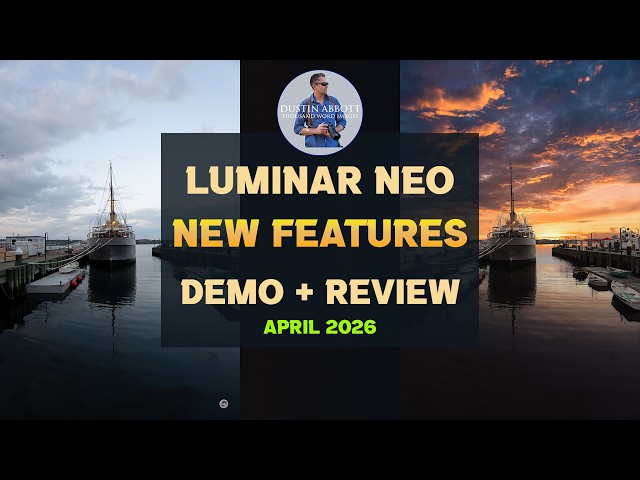
Photographer Dustin Abbott explores the most recent update to Luminar NEO and tests features for portraits, restoring old photos, AI-assisted editing and more. #skylum, #luminarmobile, #luminarneo, #aperty
Buy Luminar | New users: https://skylum.evyy.net/c/1302817/3816980/3255
Upgrade Luminar for Existing Users: https://skylum.evyy.net/c/1302817/3254139/3255
Use code DUSTIN10 for 10% off.
=============================
Table of Contents:
=============================
0:00 - Intro
1:08 - Cross Platform
1:42 - Restoration
3:17 - Light Depth
6:05 - New Portrait Tools
12:24 - AI Directed Edits
16:57 - AI Auto Edits
19:48 - Conclusion and Pricing
---------------------------------------------------------
Oben Tabletop Tripod shown in video: https://bhpho.to/3vL8YWy
DISCLAIMER: This video and description contains affiliate links, which means that if you click on one of the product links, I’ll receive a small commission. As an Amazon Associate I earn from qualifying purchases.
Keywords: Luminar NEO, Spring 2026 Update, Ecosystem, Fall 2025, Luminar Mobile, Skylum, luminar neo, aperty, Mobile. iOS, Android, Luminar Ai, Update 2, Luminar AI Review, Sky Reflection, Augmented Sky, Augment, AI, Mobile Review, Vertical, Luminar Review, Coupon Code, Dustin Abbott, Discount, Luminar Discount, Luminar Coupon Code, Sky AI, Sky replacement, SkylumPhotography, let the light in, weathersealing, #letthelightin, DA, #skylum, #luminarmobile, #luminarneo, #aperty
Show More Show Less View Video Transcript
0:00
[music]
0:10
>> Hi, I'm Dustin Abbott. Earlier this
0:12
year, I took a look at Luminar Neo's
0:14
[music] mobile application and gave you
0:17
a little bit of look at what I've been
0:19
playing around with on that. It's been
0:21
some years since I've actually done a
0:22
review of their desktop software and
0:24
because they are increasingly
0:26
cross-platform, I thought I would take a
0:28
look at a couple of their most recent
0:30
updates and some of the new tools that
0:32
came with them. They had an ecosystem
0:34
update for fall 2025 and then just just
0:37
in this last week, they announced a new
0:39
one which is their spring 2026. All of
0:42
which brings some new tools to play with
0:44
and of course they're doubling down on
0:47
AI technology as a part of the editing
0:49
process. I'm going to take a look at
0:52
some of those new features to see how
0:53
well they work, if I like the way that
0:55
they work and perhaps maybe demonstrate
0:57
for you whether or not this is something
0:59
that would actually work for you in your
1:01
own editing workflow. And so we're going
1:03
to dive in and take a look at you four
1:05
or five of these new features and see
1:07
how they work. Let's take a look. One of
1:09
the cool things about Luminar Neo now at
1:11
this point is that it is completely
1:13
cross-platform. And so my last video on
1:16
Luminar was taking a look at Luminar
1:18
mobile and I here I have access to all
1:21
of those photos that I edited on my
1:23
phone that we talked about as a part of
1:26
that review. But what we're here to look
1:28
at is a lot of the unique tools that
1:31
came as a part of the two most recent
1:33
updates including both the fall and
1:36
spring updates, fall 2025 and spring
1:39
2026. We're going to look about three or
1:41
four of those different options. Another
1:43
new tool from Luminar Neo's fall
1:46
ecosystem update from 2025 was their a
1:50
new restoration option for old photos.
1:52
So in this case, this is a
1:54
going to be a fully automated process.
1:56
Now you can go back and do tweaks after
1:58
the fact, but in this case what I've the
2:00
options I've got is from my on the
2:02
catalog page, I have now got something
2:04
called restoration down here and all
2:05
that I'm doing is actually will go away
2:08
from that and we'll drag it in here. So
2:11
I've got options of going to color, to
2:13
remove scratches or a full restoration.
2:15
And so I'm going to click that and here
2:18
I've already let it run its process
2:20
previously and so we'll take a look at
2:22
what came out of the mixer. So here's
2:24
what went in, you can see all the
2:26
typical flaws. This is from March of
2:28
1963. It's my mother-in-law and her twin
2:31
sister and so an old photo, but you can
2:34
see that it's eliminated a lot of the,
2:37
you know, kind of the junk around the
2:38
edges and kind of brought it to life
2:40
with a little bit more detail, you can
2:42
see, but without going crazy, restore a
2:44
little bit of detail, but then also
2:46
colorized it and frankly it still has
2:49
actually is a pretty good result. It has
2:51
some vintage charm to it. It looks
2:53
realistic. It doesn't look overblown.
2:55
And so I think that this is kind of a
2:57
cool effect.
2:59
Now this last time as we've just run it
3:01
through the mixer, it produces a
3:03
produced a little bit of a different
3:04
result and and so I guess you can kind
3:06
of determine what you like better, a
3:08
little bit more color, a little or a
3:11
little bit more of a sepia type look,
3:13
but either way it has definitely made an
3:15
improvement to what we threw into the
3:16
blender. So when you open up Luminar
3:18
Neo, you will come to your typical
3:21
gallery or cat catalog type setting and
3:23
you can choose what image you're going
3:25
to work with. Then usually the next step
3:27
is if you want to go into presets, you
3:30
can do so or you can jump right into the
3:32
main editing page. One thing they will
3:34
do which is interesting is that they
3:35
will suggest a few different groups of
3:39
presets for you to look at. With all of
3:42
these as you hover over them, it will
3:44
give you a quick look at how it's going
3:47
to look. I should like that winter
3:48
refuge, but with all of these, you can
3:51
scale the percentage and the intensity
3:54
of the preset itself. And so I'm going
3:56
to scale it back here more into the 50%
4:00
or so zone uh to get it to a place where
4:03
I like the overall cool effect of it. I
4:05
think that helps these colors to pop to
4:07
it, but it's not too aggressive. Now if
4:09
we jump into the edit tab here, I'm
4:12
going to take a look at one of their new
4:14
creative features which is this light
4:17
depth. And so you can see that it's
4:19
already mapped out the way that the
4:21
light is falling on the image. And so
4:23
I'm going to just work up the slider and
4:25
so that you can see how that it changes
4:28
the the lighting effect here. Now the
4:30
reason why I like this for this
4:32
particular image is that if we go back
4:33
to the original, you can see that a lot
4:35
of the kind of luminosity here is on
4:38
this foreground and there's obviously
4:39
it's it's a city, so there's some junk,
4:41
some trash on the ground. Now if I tweak
4:44
this aways, what I'm doing is I'm
4:46
changing the light intensity towards
4:48
what really is the feature here which is
4:51
this, you know, wall with a mural and of
4:53
course me leaning against it, a little
4:55
bit left less emphasis here. And so in
4:57
this case, I actually think that it
4:58
works quite well. Now also you have the
5:01
option of messing with this slider as
5:04
far as the softness that is just going
5:06
to modify that behavior. I'm going to do
5:09
very little of that and then you can
5:11
play with, you know, your color
5:14
temperature that's primarily targeting
5:16
that zone that you're working on. And so
5:18
if we take a look at here, it's
5:20
basically masked off that. And so as I
5:22
tweak this, that is changing very
5:24
little. And so instead, I'm able to just
5:27
kind of focus on the area that I'm
5:29
primarily wanting to impact. And so what
5:31
you're not seeing here is basically the
5:33
use of mask and you can see how it's
5:36
working here a little bit and you even
5:37
have some ability to tweak that mask and
5:40
so that you're either growing or
5:42
shrinking that. But the way that it's
5:44
affecting the way that the light hits
5:46
the subject, it's an interesting tool
5:47
because we can see here if I look back
5:50
towards the original before the edits
5:52
and then come back to it, we can see
5:54
that it's just added some, you know,
5:56
kind of sparkle to the image generally,
5:58
allows myself, the subject to pop up,
6:00
the wall itself to pop up more and
6:02
taking a little bit of emphasis on this
6:04
messy foreground. Okay, we're going to
6:06
take a look at some of the new portrait
6:08
features here in the most recent build
6:11
of Luminar
6:13
Neo. I'm going right past the presets.
6:15
I'm not really going to mess with any of
6:17
that for this particular image, but I
6:19
will just very quickly jump into this
6:23
area here. I'm going to add just a hint
6:27
of extra exposure there.
6:30
I'm going to
6:31
warm the image a bit here, maybe not
6:34
quite that much and um
6:39
maybe shift that color just a little bit
6:42
that direction.
6:44
Let's go somewhere in this zone just to
6:46
give it kind of that good warm summer
6:48
glow. So I'll give you a quick look at
6:50
what we have done so far, just kind of
6:52
warming up the image and making it look
6:54
a little more summery. But where I
6:56
really want to take us to is under their
6:59
portrait setting here. And so they have
7:02
some features here that we'll quickly
7:03
check out. One of those is studio light.
7:06
Now again, your kind of idea of what,
7:08
you know, constitutes as being gimmicky.
7:10
So let's say if we're going to do this
7:12
and I'm going to put it at high
7:13
intensity just so you can see what it's
7:15
doing. So essentially as we move this
7:18
around, it's like adding a light source.
7:21
And so you can see the masking, this is
7:23
they're big on the masking. It's
7:25
analyzing the places where if a light
7:27
was at this direction, the places where
7:29
the light would naturally fall. Now
7:31
obviously we would never use it at this
7:33
degree of intensity, but if you're
7:34
wanting to add a little bit of hair
7:37
light for example or a little bit of a
7:39
back light or in this case add a little
7:42
bit of a fill light which frankly is
7:44
what I'm most inclined to do here. And
7:47
so obviously I wouldn't use it anywhere
7:49
near the intensity that was at. But if
7:53
we bring this down maybe into this zone
7:57
and now if we were to look at it, you
7:58
can see that adding that bit of fill
8:01
light has just allowed the face
8:03
highlight and a little bit of the body
8:04
to pop a little bit more and so it just
8:07
definitely is helping us to get a little
8:10
bit closer there. So I mean obviously
8:11
you can play around that. You can if we
8:13
go back here for a moment, you can add a
8:14
number of different light sources. I'll
8:16
leave that up to you to decide how much
8:18
you want to play with that. One of the
8:20
other main things that they are doing
8:23
here though is automating things like
8:25
working on the face and so as far as all
8:30
of our skin textures and details. And so
8:32
here we're at a pretty high level of
8:33
magnification, larger than what you
8:35
would look at it typically, but let's
8:38
just take a look at face smoothing.
8:39
Obviously if we go to the extreme of
8:42
maxing out that slider, you can see that
8:45
it has done that. However, it's smoothed
8:47
things out, but without, I mean like
8:50
totally decimating the image. Okay, and
8:53
so here you can see it's smoothed it,
8:55
but even at 100% it's it's not bad. It's
8:59
done it in a way that is natural. And so
9:01
I think that that's really kind of the
9:04
the benefit here. One of the one of
9:06
these tools that we have here is
9:07
improvement to their shine removal.
9:09
Again, I'm going to max out that slider
9:11
because one of the things we did by, you
9:13
know, putting that is we created that
9:15
extra fill light is we added a little
9:17
bit of a highlight hotspot there. So if
9:19
I slide that over aways to where I have
9:22
eliminated that, we can see that I've
9:24
gotten that nice bright light on the
9:27
face, but with adding like a glow, but
9:30
without a hotspot there. And so I think
9:32
that that is, you know, it's just nice.
9:34
Now as far as blemish removal, I mean
9:36
young skin here, so not a lot of
9:37
blemishes. Let's see what happens if we
9:39
just take that all the way up and give
9:42
it a moment to do its work. Again, not a
9:44
whole lot to deal with, but we can see
9:46
right through here that it's done some
9:48
subtle and the key being subtle. I like
9:51
what we're doing here because it's not
9:53
intense, it's not overdone. It's not
9:55
even trying to completely eliminate,
9:57
it's minimizing that and that's even at
9:59
100% magnification and so or 100% kind
10:03
of opacity to it. And so anyway, I think
10:05
that what Luminar is doing here is
10:07
adding some subtlety to these tools
10:10
and so that you're able to get a just a
10:12
better looking end result quite easily.
10:14
And so definitely some things there. I
10:16
mean, you can go beyond that into body
10:18
morphing and again a young attractive
10:22
subject don't really need that. They've
10:24
got some different tools to use here if
10:26
you're using an high key and then even
10:28
when it comes to face, you can change
10:30
the face light. I mean and obviously
10:32
that's a more localized way of what
10:34
we've what we've already kind of done
10:36
with the studio light and then you can
10:38
slim the face down.
10:41
Um
10:42
Again, not necessary here.
10:44
But what I'm going to do is show you
10:46
that at a 100% so we can see how subtle
10:49
it is. To me it's, you know, I don't
10:51
like that. It the face looks kind of
10:53
squashed. But if we were to take that
10:55
down to a much lower
10:57
level, again now we've got a more
11:00
natural result. Again, I don't feel like
11:02
it's necessary here but you know, it
11:04
gives you some options when it comes to
11:06
things like that. So I think that I
11:09
think most people would agree if we look
11:10
here at what we've quickly accomplished
11:12
that we've got a image that looks I
11:15
think nicer overall in general. One
11:18
other tool that I haven't examined here
11:20
is the bouquet quality. Now I happen to
11:22
shoot this with the Sigma 200 mm F2 and
11:25
so obviously we've got a highly diffused
11:28
background already. But what we can see
11:30
here is if we pull up the the bouquet,
11:32
it's showing a really you know,
11:35
sophisticated mask here. And so if I max
11:38
out that slider, again it's going to an
11:40
extreme the background to me looks a
11:43
little bit artificial at this point and
11:45
you can see that the mask in the hair is
11:47
a little imperfect. But again, if we
11:50
bring that opacity down to a level to
11:53
where it's not messing with the hair.
11:56
Again, what we have got and I'm going to
11:59
exit out of that and take a look here.
12:02
What we've got is just a little bit
12:05
softer if you look at this zone for
12:07
example, it's just a little bit softer
12:09
grabbing a few less edges and so the end
12:11
result is just a little bit more soft
12:15
glowing kind of that you know, magical
12:18
looking summer portrait that I was going
12:20
for. So tools that definitely do work.
12:23
One of the new tools in the fall
12:25
ecosystem update from 2025 was the
12:28
addition of this AI assistant. If you
12:30
click on it here, it gives you a list of
12:33
options. You can obviously ask it about
12:35
other things but in this case, it's
12:37
giving you some basic you know, options
12:40
and so you can go to the enhance this
12:42
photo which I'll demonstrate something
12:43
like that in just a moment. In this
12:45
case, I'm going to select the fourth
12:47
option how to make this image look more
12:49
moody and cinematic. And so what is
12:53
going to
12:54
it's going to do is it's going to think
12:55
about things for a moment and rather
12:57
than do all of the edits for you, you
13:00
know, without a lot of transparency,
13:01
instead it's going to give you a list of
13:04
tools to utilize. So
13:06
in four steps, it says start with mood
13:08
and so there it's going to take me to
13:09
mood and recommends that I choose a lot.
13:13
And so there obviously is a lot of
13:15
different lot options and the nice thing
13:17
about these is that you can get a real
13:20
time feedback on all of them as you go
13:22
through it. I kind of like the toning
13:25
that comes from the Manhattan and you
13:28
can obviously select the amount of that
13:31
that is there. You can select contrast
13:33
as a part of the lot. I don't recommend
13:35
doing a lot of this here yet because
13:37
you'll have more options in how to do
13:39
it. So basically, I'm looking at the
13:41
overall you know, toning and determining
13:43
that I like the color palette here and
13:46
what the potential is there to edit
13:47
with. Okay, the next step that it
13:49
recommends is going to color to give us
13:52
a little bit more saturation to enhance
13:54
the moodiness. And so here I'm going to
13:56
play a bit. Obviously, heavy levels of
13:59
saturation way too much. Vibrant, you
14:02
can see again heavy levels of intensity
14:05
a little too much. But here what we've
14:07
done is we've increased that kind of
14:08
moody blue in the water which I like and
14:12
you know, without doing any kind of
14:13
serious damage to the colors to where
14:15
they're they're popping but they're not
14:17
oversaturated. Moving on here, going
14:19
into develop, we're going to go there to
14:22
do things like adjusting contrast,
14:24
darkening the background to further
14:26
emphasize the ship and create a more
14:28
dramatic effect. And so if we go here,
14:31
we can look at some of these options and
14:32
so in highlights, I like pulling down
14:35
the highlights a bit to kind of enhance
14:37
that sky a little bit more. Maybe open
14:40
up those shadows a hair but then let's
14:42
take a look at this smart contrast and
14:44
play with that a little bit. We can see
14:46
decreasing that allows for a more flat
14:49
image. Increasing it is going to give us
14:51
a little bit more kind of pop there
14:54
generally in that. Now it has me adding
14:58
going to atmosphere to subtly add fog or
15:00
mist. I'm not sure that I necessarily
15:03
love this. I think that it creates too
15:05
much destruction to the image itself. So
15:08
I'm going to skip that step but that's
15:10
the nice thing is that you don't have to
15:11
just go with it. You can see their
15:13
recommendation. Now the final step
15:15
they're recommending is going into the
15:16
sky AI. And so here this is you'll have
15:20
to determine whether or not you want to
15:21
go to this level. I could just tweak and
15:23
enhance this particular sky. However,
15:25
you can see that if I click on their
15:28
recommended sky here, I'm going to take
15:30
that off for a moment. It does give us a
15:32
pretty dramatic image there that looks
15:35
pretty awesome. And so again, as always,
15:38
you can further refine that a little bit
15:41
if you want to tweak that as far as
15:44
where that sky position is. I kind of
15:46
actually like it there a little bit
15:47
more. It's vertical position, you can
15:49
play with that but in this case, we want
15:51
to get to where that's just over that
15:54
horizon over there. Then you can shift a
15:57
little bit right and left. However,
15:59
right in here is a nice kind of dramatic
16:02
result and I I kind of want a position
16:04
where the sun would be here and so that
16:06
I'm getting a realistic effect of where
16:07
the light would be falling there. Again,
16:09
you're going to have to determine
16:10
whether or not that is a bridge too far
16:12
for you but certainly if we take a look
16:14
at you know, where we started to what we
16:16
ended up with, it is obviously a very
16:18
dramatic result. I'm not sure I would go
16:20
all the way to this final result though
16:22
I do really like the image resulting.
16:24
Everything up to this point that I was
16:26
able to create is an actual you know,
16:28
natural just enhanced image. But at
16:30
least with this, you're able to actually
16:32
learn the steps and rather than it
16:34
making it all for you, you can actually
16:36
decide what you want to use. And the
16:38
nice thing about all of this as you
16:40
click on this edit tab, you can always
16:42
I'm going to minimize this for a moment.
16:44
You can go back through those steps that
16:46
you've taken and you can determine I
16:47
don't want to mess with that sky. There
16:49
you go. You can remove that.
16:51
And just move ahead as you would want
16:54
from there. So it gives you a lot of
16:56
control over the finished result. What
16:58
if you want a more animated approach to
16:59
this process? Well here if we look at
17:01
the AI assistant, we can look right here
17:03
at the top and look at the options for
17:05
enhancing this photo.
17:07
Here is what's going to happen if you
17:08
want AI to basically do the heavy
17:10
lifting but there is one advantage here
17:13
about this that I do like. So it comes
17:15
back with three different edits here and
17:18
so we can just click on them and see how
17:21
they turned out once they're applied. So
17:23
there is a you know, intense moody. Here
17:27
is a
17:29
you know, a little bit different
17:30
lighting effect to the image. Again,
17:31
we're kind of really
17:33
adding more saturation, more moodiness
17:35
to the general image and then a third
17:37
which is a little bit of a brighter,
17:39
less moody. But in each one of these
17:41
edits, what we're seeing is that a
17:43
comparison of them. And so edit number
17:45
one that was the first we saw, the
17:47
photo's overall brightness was reduced
17:49
with shadows deepened and highlights
17:50
toned down to enhance dramatic twilight
17:52
effect. Exposure's increased to capture
17:54
more detail in the darker area while
17:56
contrast was subtly boosted to improve
17:58
the tonal range and create a more
18:00
visually engaging image. If we skip down
18:02
to number three, further adjustments
18:04
were made to contrast and shadows with
18:05
midtones subtly enhanced to create a
18:07
richer depth. The glow effect was added
18:09
to accentuate the ambient light and a
18:11
touch of dramatic was introduced to
18:13
heighten the mood of the dusk scene
18:14
alongside a slight color adjustment to
18:17
reduce green tones. In the middle, we
18:19
had obviously a third one there.
18:21
What I like about this is that whether
18:24
or not you like the end result, you at
18:26
least have a little bit of transparency
18:28
about how it arrived at this result. And
18:30
so you can actually go through these
18:32
steps. And of course because they're
18:34
here, you could say well, that's you
18:37
know, not enough for me and so I'm going
18:39
to crank that up. Now hopefully that's
18:41
not the taste you actually have but
18:43
anyway, if it was, that's fine. But here
18:45
I could say, you know what? I don't it's
18:47
a little too much for me. I'm going to
18:49
tone that down a little bit. And so you
18:51
actually have the opportunity to then go
18:53
back seeing what they have done and you
18:56
can then further tweak those tools to
18:58
your own taste. And so I think for those
19:00
of you that are starting off and maybe
19:01
you don't know a lot about how to edit
19:04
or get results, you can at least
19:05
experiment with this and rather than
19:07
just clicking a preset and having no
19:09
control over what has happened other
19:11
than just the opacity of the preset, you
19:13
can actually go through here and maybe
19:15
learn a bit about your own taste and how
19:17
that you can achieve maybe a little bit
19:19
more dramatic and end result but while
19:21
still retaining your own unique editing
19:24
style. And I think that that adds a lot
19:26
of value. And so here is this is it
19:28
necessarily the end result I would end
19:30
up with. However, it is a you know, I
19:33
would say a more engaging image. I would
19:35
I tend to be edit a little bit more on
19:38
the subtle side so I probably would go
19:39
with a little bit more subtle end
19:41
result. But I do like what's been done
19:42
with the lighting and the overall effect
19:44
to the sky. It's interesting. I would
19:46
just play with it a bit more to get it
19:48
to my own personal taste. So my
19:50
conclusion is is that Luminar
19:53
sophistication is continuing to grow,
19:55
and they definitely they're kind of
19:57
early leanings towards AI have paid off
20:00
as they predicted the way that the
20:01
industry has gone. It's obviously still
20:04
somewhat of a controversial topic
20:05
amongst photographers as we kind of
20:07
wrestle with the idea of this
20:09
manipulation of images, how much of it
20:11
actually is photography and how much of
20:14
it is just, you know, digital art
20:16
creation. I'm not necessarily here to
20:18
have that debate. I tend to be a little
20:20
bit more of a purist with my own work,
20:22
but at the same time clearly they have
20:25
embraced tools early on that
20:28
more mainstream editing software like
20:30
products from Adobe have ended up
20:32
embracing in the end. I would say that
20:34
everything that I see here seems to work
20:36
fairly well, and I do like the fact that
20:38
you may maintain some control in most of
20:41
these cases over what's actually being
20:43
done, and I don't find the results quite
20:46
as cartoonish as what they once were.
20:49
And so, I think that as long as you're
20:50
using them within the bounds of taste,
20:53
certainly what Luminar has done with
20:54
their Neo software is very, very
20:57
interesting. And then so, take a look at
21:00
that. I'll have information in the
21:01
description down below as when it comes
21:03
to pricing models. They do have sales
21:05
associated right now, and so you can
21:07
take a look at that and see if you would
21:09
like to take the plunge into the Luminar
21:12
Neo world. As always, thanks for
21:14
watching. Have a great day, and let the
21:16
light in.
Science